How to update your forgotten password
Step 1
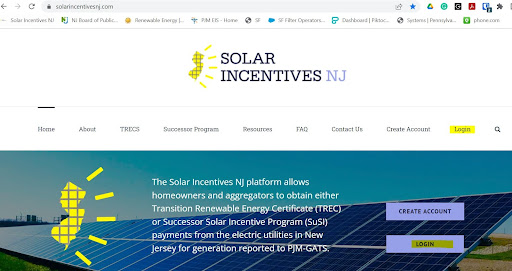
Select Login in the top right.
Step 2
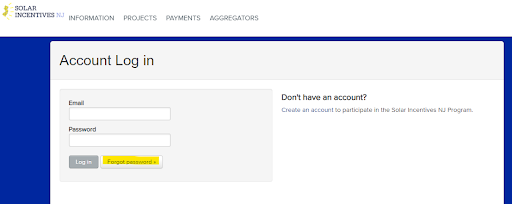
Click the Forgot Password button.
Step 3
Enter your email address and click the “Send me a reset email” button

Step 4
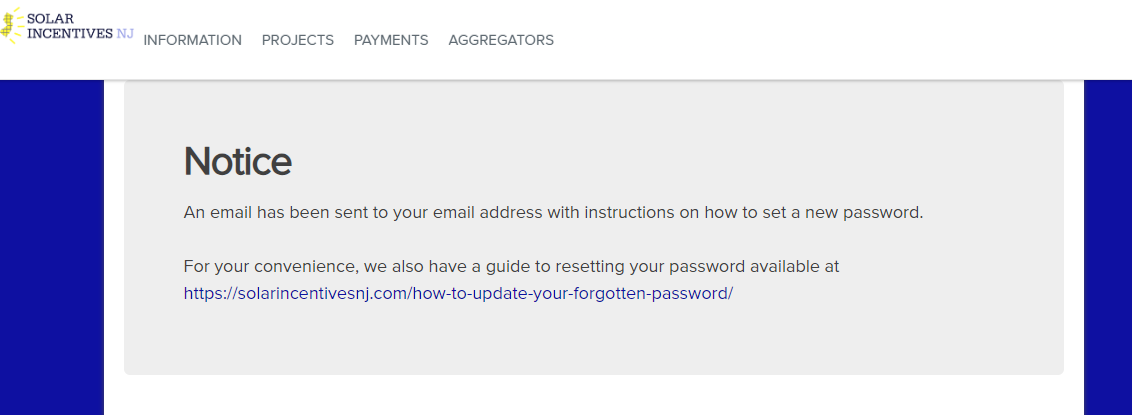
A page labeled “Notice” will then display directing you to your email for instructions.
Step 5
Copy the temporary password provided in the “New password request” email next to the phrase “Your Temporary Password is: ” and click the link provided in the email

Step 6
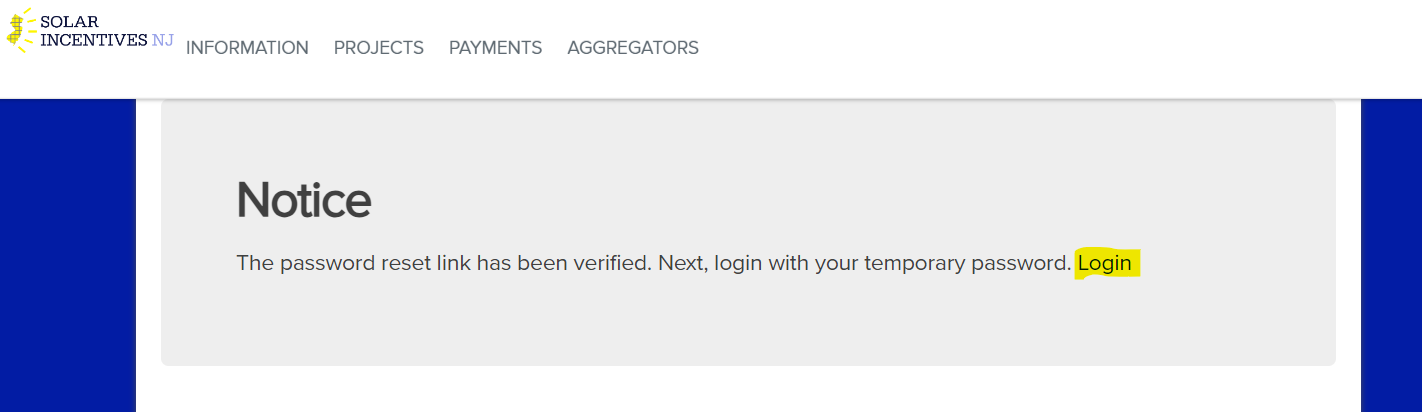
Once the resent link is clicked, a new page will display again labeled “Notice” where you must click the “Login” link at the end of the text.
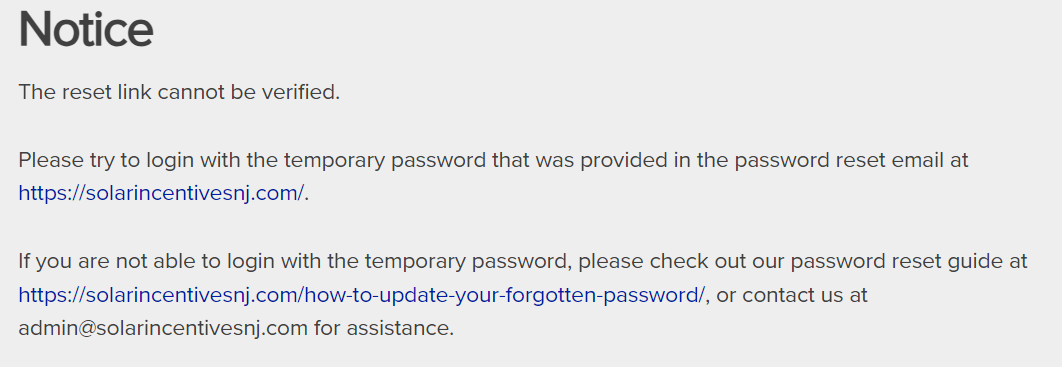
If you receive a notice stating “The reset link cannot be verified”, please simply try to login with the temporary password at https://portal.solarincentivesnj.com/app
Step 7
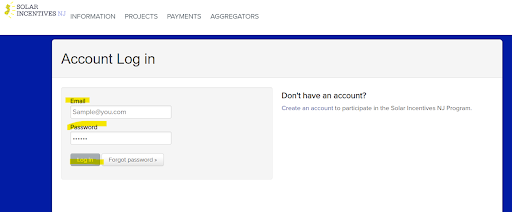
An Account Login page will be displayed where you will enter your email address and your TEMPORARY password from the email and click, “Log In”.
Step 8
A new page will be displayed showing, “Change Password” where you will enter the temporary password again under the “Temporary Password” field and create a new password.

Step 9
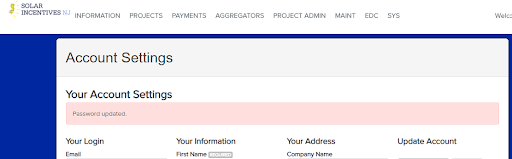
Click the “Save Changes” button and your account settings page will appear where you will receive a notice, “Password updated”.